Shortcut keyboard adalah kombinasi dua atau lebih tombol pada keyboard yang ketika dilakukan akan melalkukan perintah. Banyak sekali manfaat dengan adanya keyboard shortcut itu dan penggunaannya cukup mudah.
Asal tau apa saja kombinasi tombolnya pasti bisa. Nah bagi yang belum tau, akan saya berikan daftar shorcut keyboard pada windows seven. Berikut ini diurutkan dari yang paling umum perintahnya :
Shortcuts Keyboard Umum
F1 = Display HelpCtrl+C (or Ctrl+Insert) = Copy the selected item
Ctrl+X = Cut the selected item
Ctrl+V (or Shift+Insert) = Paste the selected item
Ctrl+Z = Undo an action
Ctrl+Y = Redo an action
Delete (or Ctrl+D) = Delete the selected item and move it to the Recycle Bin
Shift+Delete = Delete the selected item without moving it to the Recycle Bin first
F2 = Rename the selected item
Ctrl+Right Arrow = Move the cursor to the beginning of the next word
Ctrl+Left Arrow = Move the cursor to the beginning of the previous word
Ctrl+Down Arrow = Move the cursor to the beginning of the next paragraph
Ctrl+Up Arrow = Move the cursor to the beginning of the previous paragraph
Ctrl+Shift with an arrow key = Select a block of text
Shift with any arrow key = Select more than one item in a window or on the desktop, or select text within a document
Ctrl with any arrow key+Spacebar = Select multiple individual items in a window or on the desktop
Ctrl+A = Select all items in a document or window
F3 = Search for a file or folder
Alt+Enter = Display properties for the selected item
Alt+F4 = Close the active item, or exit the active program
Alt+Spacebar = Open the shortcut menu for the active window
Ctrl+F4 = Close the active document (in programs that allow you to have multiple documents open simultaneously)
Alt+Tab = Switch between open items
Ctrl+Alt+Tab = Use the arrow keys to switch between open items
Ctrl+Mouse scroll wheel = Change the size of icons on the desktop
Windows logo key Picture of Windows logo key +Tab = Cycle through programs on the taskbar by using Aero Flip 3-D
Ctrl+Windows logo key Picture of Windows logo key +Tab = Use the arrow keys to cycle through programs on the taskbar by using Aero Flip 3-D
Alt+Esc = Cycle through items in the order in which they were opened
F6 = Cycle through screen elements in a window or on the desktop
F4 = Display the address bar list in Windows Explorer
Shift+F10 = Display the shortcut menu for the selected item
Ctrl+Esc = Open the Start menu
Alt+underlined letter = Display the corresponding menu
Alt+underlined letter = Perform the menu command (or other underlined command)
F10 = Activate the menu bar in the active program
Right Arrow = Open the next menu to the right, or open a submenu
Left Arrow = Open the next menu to the left, or close a submenu
F5 (or Ctrl+R) = Refresh the active window
Alt+Up Arrow = View the folder one level up in Windows Explorer
Esc = Cancel the current task
Ctrl+Shift+Esc = Open Task Manager
Shift when you insert a CD = Prevent the CD from automatically playing
Left Alt+Shift = Switch the input language when multiple input languages are enabled
Ctrl+Shift = Switch the keyboard layout when multiple keyboard layouts are enabled
Right or Left Ctrl+Shift = Change the reading direction of text in right-to-left reading languages
Shortcuts Keyboard untuk Windows Explorer
Ctrl+N = Open a new windowCtrl+W = Close the current window
Ctrl+Shift+N = Create a new folder
End = Display the bottom of the active window
Home = Display the top of the active window
F11 = Maximize or minimize the active window
Ctrl+Period (.) = Rotate a picture clockwise
Ctrl+Comma (,) = Rotate a picture counter-clockwise
Num Lock+Asterisk (*) on numeric keypad = Display all subfolders under the selected folder
Num Lock+Plus Sign (+) on numeric keypad = Display the contents of the selected folder
Num Lock+Minus Sign (-) on numeric keypad = Collapse the selected folder
Left Arrow = Collapse the current selection (if it’s expanded), or select the parent folder
Alt+Enter = Open the Properties dialog box for the selected item
Alt+P = Display the preview pane
Alt+Left Arrow = View the previous folder
Backspace = View the previous folder
Right Arrow = Display the current selection (if it’s collapsed), or select the first subfolder
Alt+Right Arrow = View the next folder
Alt+Up Arrow = View the parent folder
Ctrl+Shift+E = Display all folders above the selected folder
Ctrl+Mouse scroll wheel = Change the size and appearance of file and folder icons
Alt+D = Select the address bar
Ctrl+E = Select the search box
Ctrl+ = Select the search box
Taskbar Shortcuts Keyboard
Shift+Click on a taskbar button = Open a program or quickly open another instance of a programCtrl+Shift+Click on a taskbar button = Open a program as an administrator
Shift+Right-click on a taskbar button = Show the window menu for the program
Shift+Right-click on a grouped taskbar button = Show the window menu for the group
Ctrl+Click on a grouped taskbar button = Cycle through the windows of the group
SUMBER : Vina Yudittia


 Tips upload video ke Youtube super cepat - Pada awalnya


 Ketika komputer kita terkena malware ( virus, worm, trojan, dan sejenisnya), sudah hampir dapat dipastikan bahwa kinerja okmputer akan lambat. Virus akan sering menggunakan sumber daya komputer baik RAM atau CPU, termasuk juga senantiasa memantau aktivitas komputer. Hal ini tentu sangat berpengaruh terhadap kinerja aplikasi lain.
 Jika kita sering menggunakan komputer untuk ber-internet, jika tidak berhati-hati ada kemungkinan komputer bisa terkena spyware. Efeknya mungkin tidak begitu besar dengan kinerja komputer, tetapi bisa berpengaruh pada akses internet, dan berbagai hal yang menganggu kenyamanan berinternet dan yang lebih buruk, data-data penting (user, password, account dll) kita bisa di ketahui oleh si pembuat spyware ini.
 Semakin banyak komputer kita dengan software, biasanya akan semakin memperlambat kinerja komputer, meskipun pengaruhnya ada yang relatif kecil dan ada yang besar. Penting untuk diketahui ketika menginstall software, cek apakah ada aplikasi yang senantiasa berjalan di belakang. Hal ini bisa di ketahui dengan program seperti Autoruns.
 Ketika komputer kita masih menggunakan Hardisk yang sudah cukup lama (tua), mungkin lebih dari 5 tahun, maka kinerja komputer bisa semakin lambat. Untuk mengecek, kita bisa menggunakan software gratis HDD Tune dan sejenisnya (baca artikel:
  Banyak sedikitnya jumlah RAM/Memori yang kita gunakan memang tidak bisa dibuat standard sama untuk satu komputer dengan komputer lain atau bahkan sistem operasi. Meskipun ketika akan menginstall Windows, ada spesifikasi minimal RAM, tetapi jenis aplikasi yang kita gunakan juga harus diperhitungkan. Untuk mengecek, buka saja Task Manager dan di bagian Performance periksa PF Usage dan juga Physical Memory yang menunjukkan total Memory fisik (RAM) dan sisa tersedia (Available).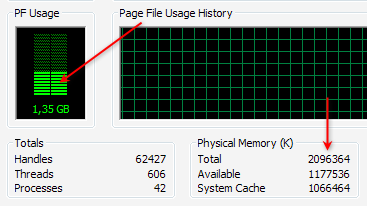
 Tidak jarang dua aplikasi dalam kategori yang sama bisa berakibat terjadinya konflik, yang semakin memperlambat kinerja komputer. Tanda-tanda terjadi konflik adakan komputer yang bermasalah setelah kita menginstall suatu software, padahal sebelumnya tidak ada masalah. Yang sering terjadi konflik biasanya di kategori software security, semisal antivirus.
 Tidak sedikit orang hanya ikut-ikutan (trend) dalam penggunaan software, padahal fitur yang diinginkan sebenarnya terdapat dalam software lain yang kecil dan gratis. Jika spesifikasi komputer kita memang minimal atau kita ingin bekerja dengan cepat, maka pilihlah software yang tepat. Software dengan ukuran besar tidak senantiasa lebih baik dan tepat bagi masing-masing kita. Berikut beberapa contohnya :
 Meskipun software-software yang di install tidak berjalan di belakang, tetapi hampir setiap software selalu menambahkan entry (data) ke registry, sehingga semakin banyak software yang di install ukuran registry (windows) juga akan semakin besar. Karena registry ini akan di akses baik ketika komputer berjalan maupun sudah berjalan, besar kecilnya juga mempengaruhi ke kecepatan/ waktu respon-nya.
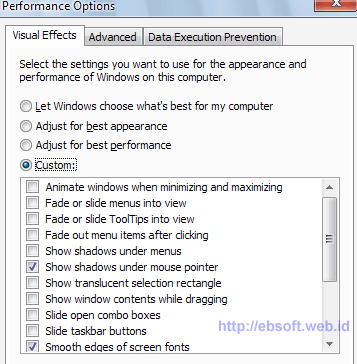
 Windows Xp, Vista maupun windows 7 menyediakan opsi untuk menggunakan tampilan dengan berbagai efek. Jika komputer kita mempunyai spesifikasi yang bagus, tentu berbagai efek ini tidak menjadi masalah, tetapi jika ingin performa cepat, berbagai efek windows bisa di non aktifkan.